Opera is competing very well

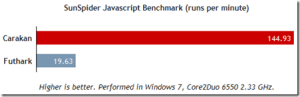
In regards to my post Opera please compete, not complain I was a harsh on Opera and suggested they just get on with adding useful features and function. Since then I have been watching them with little hope until I saw this post Opera 10.5 pre-alpha for Labs. This comes with a host of new features including a super fast JavaScript engine Carakan and Windows 7/Vista platform integration. If Opera 10.5, if lives up these promises, there is no reason it should not be the most used browser.

Some time later on a work mates computer I saw him running 10.5. He usually runs the pre-release but told me this was the release, but it was not automatically updating. I check it out on Opera.com and sure enough it was released on the 2nd March. The day was the 16th so I tried checking for updates, but was told I was up to date.

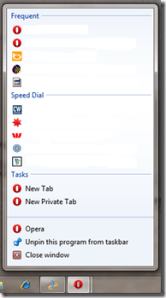
I therefore went and manually updated at work, but was not so happy with the release yet for home. Sometime early April it began prompting to update at home and I did. I can see why the staged release was done. To me it still has some stability issues not seen in the previous version. On Windows 7 however, I now enjoy Opera with Aero Glass, as well as Aero Peek and Jump Lists. Now, you can easily access your Speed Dials, tabs and more from the Taskbar. And it is faster than ever. So well worth the update. Well done to the Opera team.


Technorati Tags: ,,

Deploying TFS Deployer

We have been looking at TFS Deployer for a long time to automate further some of our processes. Today (mid last year, I’ve been sitting on this draft for a while) it finally became high enough priority to get it going. This will allow us to automatically deploy to test server, verify the build, and deploy to a wider internal audience to allow us to get early feedback on our latest product development.

I downloaded the latest source in case I had issues, I would be able to debug them and rebuild the solution myself quickly. I opened TFS Deployer\Trunk\TfsDeployer\TfsDeployer.sln and built the solution. Looking at the installation instructions I was disappointed to find there was no installer and this would be a bit of a manual process. Fortunately however, the instructions are well detailed.

Installing TFS Deployer

Step 1: Copy the application files: I copied from TFS Deployer\Trunk\TfsDeployer\TfsDeployer\bin\Release files, TFSDeployer.exe, TFSDeployer.exe.config and Readify.Useful.TeamFoundation.Common.dll to the path C:\Program Files\TFS Deployer on the TFS Server. I later found that there is an installer to do this, but I don’t know what version it is.
Step 2: Install the service: The service can install itself using TFSDeployer.exe –i. Nice.
Step 3: Determine the service account: I reviewed the permissions required and decide I would like to run this under our TFSService account. It is not a local administrator, but does have the required privileges into TFS.
Step 4: Edit the configuration file: Well documented what each key is and what needs to be set. Although for the most part these are self explanatory, it would be nice to have the description directly in the config file also. I uncomment the system.diagnostics section to allow errors and warnings to be logged to the event viewer.
Step 5: Start the service: Set the service account to the one from Step 3 and start the service. Service starts, then stops. Hmm….
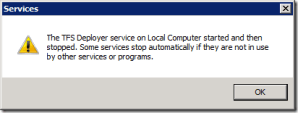
On to the Troubleshooting. I started up a console running as TFSService and ran TFSDeployer.exe –d.

Permission error creating the WCF endpoint. In step 3 were the instructions using httpconfig to give permission for the URL to the required account, TFSService. However I followed the URL given in the error message http://go.microsoft.com/fwlink/?LinkId=70353. This gave me the instructions for giving permissions without having to use a 3rd party application. I run the command: netsh http add urlacl url=http://+:8881/BuildStatusChangeEvent user=<domain>\TFSService, which returns, URL reservation successfully added. Sounds good. (I found this later detailed here). I start the service again and this time it works. To confirm the registration of the service to the TFS Event system, I have a look in the TfsIntegration database, table dbo.tbl_subscription, and I see an entry for BuildStatusChangeEvent at address http://<machinename>:8881/BuildStatusChangeEvent.

Preparing the Deployment Script

Step 1: Create Deployment Script: Create Deployment directory under the TeamBuildTypes/<Build Definition Name> directory in the source control explorer.
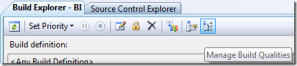
Step 2: Create the Mapping File: The file template link is dead, but there is the text just below the link. I copy and paste it into a new file DeploymentMappings.xml which is added to the new folder in the source control explorer. Opening this file with Visual Studio which has the open solution allows it to pick up Intellisense from the xsd from TFS Deployer\Trunk\TfsDeployer\TfsDeployer\Configuration\DeploymentMappings.xsd. Updating the mappings for the transition states is straight forward. Firstly however, I needed sort out exactly what our build quality states should be. This is done by clicking the Manage Build Qualities button on the Build Explorer.
 

Step 3: Create PowerShell script: There is a demo script on the page to help get started. What is also good and interesting point mentioned is that you have access to the TFS IBuildDetail, making it very simple to retrieve the required paths. I create a script to print out all the available properties to the event viewer (found in  TfsDeployer\TfsDeployer\Samples\PrepareForInvestigation.ps1) and then check in the Deployment folder with the mappings file and my script.

 
Step 4: Change the Build Quality to Test it: I opened up the build explorer, changed the build quality, and refreshed my Event Viewer on the TFS server where TFS Deploy is. Nothing? Huh? I subscribe to the BuildStatusChangeEvent alert through the alerts dialog.
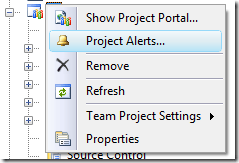
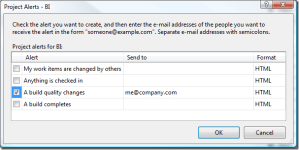
Changing the build quality does send me an email. I check the URL http://<tfsserver&gt;:8881/BuildStatusChangeEvent/BuildStatusChangeEvent and get an empty page with no errors, so I assume the web service is working. I then change the build quality on the Nightly build definition, rather than the Continuous that I have configured TFS Deployer against. Another look in the event viewer is an entry from TfsDeployer, Reading Configuration File:C:\Users\TFSService\AppData\Local\Temp\415dab85-39cb-4e8c-8518-3be1ad6d1e4c\DeploymentMappings.xml failed. The file also does not exist. I assume this is an error because this is no mappings file for this build definition, so it is working for the continuous, just not executing the script properly. Either my script has an error, or it is not running at all. I set the value on the switches to 3 on the TFSDeployer.exe.config for Informational message to be logged, restart the service and change the build definition again. The last of the 11 logged messages is the Eval results: isComputerMatch=False, isOldValueMatch=True, isNewValueMatch=True, isUserPermitted=True. Now it is clear to see what I did wrong here. Now I get Matching mapping found, running script TestTfsDeployScript.ps1 but the script does not appear to run. I set the execution policy of PowerShell to remote signed, Set-ExecutionPolicy RemoteSigned, but still nothing. I started the remote debugger, attached to the process, and stepped through to see what was going on. While it was paused, I had access to the script it had downloaded and run it as TFSService. That worked. I then continued stepping through the code and then… everything worked!? I don’t know exactly why it is all working on that machine now, but it does, and it works a treat.

Shared Scripts

Most of my actions from the Build Quality change will be deploying the application to different servers. The script will be the same with different server and database connection details. The is where the feature Shared Deployment Resources feature comes in very nicely. This setting, SharedResourceServerPath, is in the TFSDeployer.exe.config. After setting the value to a source control path, i.e. $/MyProj/TeamBuildTypes/Deployment/. Restart the TFS Deployer service to ensure that the new setting is picked up. Extract the content of the deployment script into a new parameterized script saved to the shared deployment directory. Below is the code snippet for a named parameter script with default values.
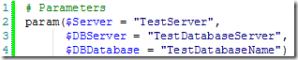
The script will now be downloaded to the same directory as the mapping script. However, the executing directory is the default (usually C:\Windows\System32) and the mapping script is started up using the full path. Calling the shared script therefore cannot be done with .\ScriptName.ps1, however, it is easy to get the full path of the current executing and call the shared script with that path.

Set User Permissions

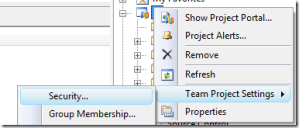
Manage Build Quality should allow be done by Quality Assurance. Fortunately, this is very easy to restrict. Right-click on the Project node in Team Explorer and select Security… The complete explanation of the permissions are available here, but all that is required is to Add the Quality Assurance group and select, Edit build quality and Start a build.
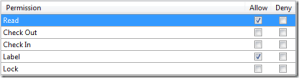
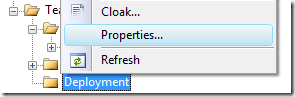
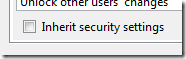
Deployment scripts have the potential to do some powerful things, allow the deployment folders to only be checked out/in by Senior Developers. In the Source Control Explorer, right-click the Deployment folder and select Properties… Select the Security tab, uncheck Inherit security settings and check all permissions for groups that require full access (e.g. Administrators, Service Accounts), and give Contributors just Read permission. Ensure your TFSDeployer service user can still access the path.
   

Improving the installation experience

Now that I have been through all that, I do not want to have to repeat it for each server I wish to put TFS Deployer on. So I have created a WiX unattended installer that will do the steps in the Installing TFS Deployer section above. That is, deploying the program files, setting the config file, installing the service with a specified service user, give the user permission to the URL Reservation and set remote signed execution permission for PowerShell. Now I just need to run this msi from the command prompt with the parameters for my configuration.

C:\Users\Matthew>msiexec /i TfsDeployer_Setup.msi SERVICE_ACCOUNT=<domain>\tfsService SERVICE_ACCOUNT_PASSWORD=tfsServicePassword TFS_URL=http://tfs:8080 SMTP_SERVER=mail.<domain.com> TO_ADDRESS=matthew@<domain.com> FROM_ADDRESS=tfsDeployer@<domain.com>

Notes

  • Not specifying the SERVICE_ACCOUNT will install the service and attempt to start as LOCAL SYSTEM, which will most likely fail to connect to TFS.
  • The Base URL is automatically set as http://<ComputerName&gt;:8881.
  • The installer only works on Vista or above. This is due to using netsh for http reservation and I did not want to spend the time getting the Access Control List (ACL) in the form of a Security Descriptor Definition Language (SDDL) string for use with httpcfg on Windows Server 2003 and Windows XP.
  • If the service fails to install or start you will get the option to ignore. This will allow everything to be in place to diagnose with TFSDeployer.exe -d.
  • To debug errors during the installation add /lv* install.log.

Files
http://cid-ccb05a30bca0ff01.skydrive.live.com/embedicon.aspx/Public/TfsDeployer_Setup.msi

http://cid-ccb05a30bca0ff01.skydrive.live.com/embedicon.aspx/Public/TfsDeployerSetupProject.zip

http://cid-ccb05a30bca0ff01.skydrive.live.com/embedicon.aspx/Public/TfsDeployerSetupProject.patch

The TfsDeployer installer. Built from change set 29041. TfsDeployer Setup Project container Setup.wixproj, and WiX files (Product.wxs, WixUI__en-us.wxl) to build installer from TfsDeployer source. Patch for TfsDeployer project to apply to the Trunk. Contains Setup project and WiX files.

Visual Studio ASP.NET Development Server – “Internet Explorer cannot display the webpage”

I like to work at home, and my set up at home is almost at good as work, but due to less distractions it can be better. When I created a TFS workspace for my home computer (was Vista, now Windows 7), I got the latest source, built it, and all was good… almost. It did not run. We are building an ASP.NET application and when running under the ASP.NET Development Server (WebDev.WebServer.exe) I would get sent to this error page, which told me nothing useful about why it was failing.

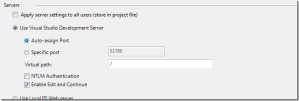
This was irritating, but didn’t really bother me because I could work around it quite quickly. I opened the Web properties of the ASP.NET Web Application project (right click the project, select Properties and then the Web tab on the left) and set it to run from the Local IIS (Internet Information Services) Web server. The only issue this had was I must run Visual Studio as an Administrator since I have User Account Control (UAC) enabled, and I don’t get Edit and Continue.


Today however, this won’t do. Today I want to create a new workspace on my home machine to work on multiple unrelated things at the same time. Multiple workspaces is a great productivity boost, from reproducing issues locally in an unchanged environment, to running units tests or other long running processes and working on something else while they are chugging away. I do not want to create multiple virtual directories in IIS, although I could. One of the things I like about the environments I have set up, is that they allow virtually no configuration on any PC you want to use, as long as you have Visual Studio with Team Explorer, you are ready to develop. And our rich wiki requires OneNote and that is all. Both enable also enable working offline and starting new developers or changing PCs is very easy. I thought it might be related to UAC or the firewall, but after a quick look around and I found ASP.NET Developer server not working which lead to IE won’t connect to asp.net server which had the solution. Opening up Notepad as Administrator (since I have UAC on) loading the C:\Windows\System32\drivers\etc\hosts file and commenting out the line ::1 localhost, restart only the browser instance that failed and all is working.

Now Visual Studio does not need to run as Administrator, I do not need to configure IIS, I can have Edit and Continue and multiple workspaces all running completely independently.


Automate, else Enforce otherwise Path of Least Resistance

These are my Three Principles of Pragmatic Process Establishment. From my experience, these are the only ways to successfully implement a process, no matter how much value it may add, or how simple it may be to follow. If these principles are not followed, neither will the process that has been put in place when it comes to the crunch.

Automate

Automation is the most desired and beneficial option. The benefits are obvious. If a process is automated the value-add from that process is gained, without extra effort from the team. For example, the simple process that developers should run the unit tests. The value is obvious. Errors are found earlier and higher quality code results. However, although this is a simple instruction to follow, running unit tests has blockers for many developers. Firstly, they take a long time to run. Secondly, not all are relevant to you. Thirdly, they may have environmental requirements you cannot or do not want to setup. This simple process also has a simple automation solution: have a continuous integration build server that runs all the tests for the developers on each check-in. All the benefits gained, and everyone will perform the process.

Another example is having developers log their time spent working against work items. Having developers do this is controversial (individual developers should never be measured, only the team as a whole), but the value is the schedule becomes very realistic and accurate based on actual burn-down rates. Time tracking is however, time consuming and error-prone. Developers tend to forget to record the time started, time finished and minus interruptions against each work item. The numbers are then fudged voiding all the value of the process. The automation solution utilized has been to use TFS Working On. The tool allows developers to very easily track their time, without wasting their time. The data is providing us with accurate reporting while dog-fooding our BI product.

Automated processes also have the benefit of accurate repeatability. If an installation package is fully created each build, the risk involved in following a multiple step process is gone. A typical Standard Operating Procedure (SOP) is usually a long manual process that is error prone, especially when under time pressure and reduces confidence in the end result, compared to an automated solution. Of course the negatives of this process implementation solution is that not everything can be automated, it may not work for all required cases or require ongoing maintenance, or may take a long time to implement.

Enforce

When Automation does not fit enforcement is usually the next best. The reason a process even needs enforcement is that it will most likely not be the easiest thing to do. There is much value in doing it, but not necessarily by the person doing it, or not at that time. The enforcement itself must be a physical enforcement, not a SOP document stating “thou shalt follow”. By physical I mean generally technical. A document cannot be uploaded to SharePoint until it has certain properties set. Physical is like ballot papers must be folded, so they don’t fit in the slot on the box, until they are folded.

In the development world check-in policies are one of the best examples of enforcement. Here you can define your coding standards, code reviewer, check-in comments and work item association for example. Having these particular policies helps maintain higher code quality and readability, easier searching of history, and better reporting. The danger of enforcement is going too far and having people overwhelmed with the number of hoops they have to jump through to get things done, making them feel inefficient and ineffective. Each process enforced must be reviewed occasionally to ensure it is still adding value, and if found to be less value than that of the time it costs, it should be dropped immediately.

Path of least resistance

When a process cannot be automated or enforced it must be the easiest way to get the task done. If not, it will require someone to be the Sergeant to enforce the process which itself is time consuming, error allowing, inconsistent and demoralizing. Essentially a path of least resistance process is very simple and value is seen clearly. It could however be artificially made the path of least resistance by making the other paths more difficult or less effective.

Using a wiki for team collaboration and information is a good thing and seems like a simple enough process to follow. However, most wikis require custom syntax for mark-up and uploading images is a pain. What I have seen happen is email is just used instead, since it allows simple rich text editing, inline images and the information is directly sent out to everyone right away. This is almost an acceptable process over the wiki, but distracting email threads tend to occur, important emails are overlooked and new employees cannot access the information. What we have implemented instead is Microsoft OneNote for our wiki. OneNote is a rich client application that automatically synchronizes all the content locally, is searchable including text in images, can show a list of recent changes if you want to follow what is happening and all sections show who modified it and when (still needs proper versioning though). It has become the easiest way to share information among the team, and is a great resource for new employees.

General Tips

Begin a new process with as little as possible. Do not start a new form with a large amount of mandatory fields. Grow them as the required. The process will have fewer blockers, less red tape with little perceived value, and get more user buy in.

Do not over analyze. Analysis Paralysis is state I now know I use to get stuck in. Do something. Keep it light, nimble and able to be adapted quickly as it matures.

Re-evaluate occasionally. Make sure you are getting value out of what the process is requiring people to do. If the cost is high and value is low, either look at how the cost can be reduced through automation or trim some of the fat of the process that is yielding low returns. If people are having trouble with the process, don’t blame the people. Focus on smoothing out the bumps that are causing them to fall of the path.

Do not provide much documentation of the process. The process needs to be simple to follow and self documenting, i.e. each step points to the next. Documentation tends to be TAGRI and will either stop a process being nimble or quickly become out of date with the process. The best option for documentation if it is required is to have it automatically generated.

A good process will perform under pressure. Do not abandon it to save a penny now, because it should save you hundreds later.

Opera please compete, not complain

I really like Opera. When I need to do some browsing, I open Opera. It’s full featured yet not cluttered. Mouse gestures and the render speed make it very fast and efficient to do browse many things at once. However, the gap I find it has in speed and ease of use is closing. I still use Internet Explorer. It is set as my default browser. Opening links from emails or whatever, IE is just far more convenient. It feels lighter for the smaller tasks. And now with IE 8 on Windows 7, pinned web pages and frequently visited have an even lower barrier of entry.


I wanted to know, before I install the beta, does Opera 10 make proper use of Windows 7 Jump Lists. How nice would it be if your Speed Dial was in your Jump List? I don’t know whether it is or not, but my problem is when I searched for it I don’t find what I want, and I find myself reading again the garbage about the Opera CEO complaining that Opera isn’t installed by default on Windows but IE is and users should have none, or all browsers installed for choice. What annoys me about this is that it is the OEMs Opera should be pushing to install their stuff. Prebuilt PCs come with plenty of crapware, it would be a pleasant change if some of it was good. Also, they do not complain about Apple including Safari in OS X, or Ubuntu including Firefox, and do not push them to install Opera. The Google Chrome guys made the point with this video that the end user really does not even know what a browser is (I tried this one on my wife, who I have using Opera, and my Mum, both gave the same kind of answer as the people on the video. I found it fascinating, try it on your friends.). So claiming that the end users are the ones that want more choice seems difficult. Multiple browsers installed as a suggest best solution, is by far not the best solution. The end user only cares if it is simple and works. More choices for most users is just more confusing.

I am probably being too hash on Opera. More competition is certainly good. Firefox’s popularity gave Microsoft a kick to finally get moving again with updating IE from the dated version 6. Personally I don’t understand why Opera is not more popular. The guys at Opera are doing awesome work. Simple features like mouse gestures, speed dial, custom searches and Opera Link make using it quicker and simpler than others. Opera 10 has some nice features like inline spell checker and auto update. I’m unsure how Opera Unite will go. The video show the purpose of Opera Unite is really cool. The feature that I find potentially useful at the moment is the file sharing, for access to my home PC from work, but there are other ways to do that. So as with any platform it will succeed if it is embraced by developers with some killer apps. Until then best of luck to Opera.

Technorati Tags: ,,

XPS Unknown by Microsoft Support

Recently I had to contact Microsoft support. I stated my issue and gave a copy of my print out relating to the issue, as an XPS. This is convenient to do, as after installing .NET 3.0 Framework, which gives you XPS support, the option to print to XPS is available. The reply I got back however, was

“The file you had sent to us was not in a file type I could bring up. I would advise you to send it back to us in a different format so we can easily view the file.”

This knocked me to the floor! How could Microsoft support not open an XPS! Firstly, as stated on fileinfo.net:

“XPS files can be opened with Microsoft’s XPS Viewer, included with Windows Vista”

So why is Microsoft support not using Vista? Secondly, when opening an unknown file type, Windows default file type unknown dialog would point them to the the page http://shell.windows.com/fileassoc/0409/xml/redir.asp?EXT=xps, which clearly states what it is and what they need to do.

So I sent an email to the XPS team about my issue, and got very polite replying saying thanks for the interest and feedback, and they are following up the issue with the teams involved. Let’s hope they do. XPS from a .NET developers perspective is just brilliant. Even if the format is not as featured or whatever as PDFs, the ease of creation due to the XAML declaration is just too easy to ignore. Not to mention the Adobe Reader (currently version 9.1 and 41.1MB!) is way too bloated (use Foxit Reader, version 3.0, 3.26MB).

The issue holding XPS up is that is it not in wide enough support yet. I have sent them to family and friends and get the same type of reply from them, as I did from Microsoft support. Hopefully with more applications using .NET 3.0 and Windows Vista & 7 adoption on the increase, this will be resolved soon. Then, as a developer, I can say goodbye to painful PDF creation.

To make sure you have got all you need for XPS, be sure to install the Microsoft XPS Essentials Pack (7.2MB – 9.0MB, after .NET 3.0 Framework, which you should have anyway!). Although you get viewing and creating abilities with just .NET 3.0, the pack also gives you an IFilter for Windows Vista\Desktop Search and IPreviewHandler for Windows Vista Explorer previews, and Outlook 2007 previewer:

On a positive note, Microsoft support was very good. Very fast responses and when I sent the print out as a PDF my issue was very quickly resolved.

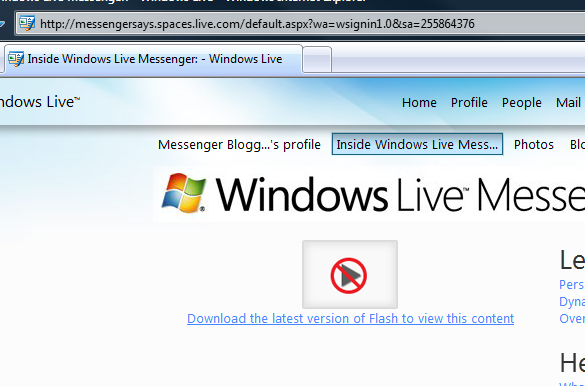
Aside: Same issue with internal adoption of Microsoft’s standards. The Inside Windows Live Messenger blog, has flash at the front, instead of Silverlight. I would have thought, since Messenger 9 has sprinkles of WPF, Silverlight would be a no brainer.

Technorati Tags: ,,

TFS Working On – Version 1.1 Released

Today I have set the TFS Working On beta to release for version 1.1. The code has not changed since the end of November 2008 and I have been using it full time along with 9 more developers at my work. This has provided us with excellent data in TFS, that we are now actively reporting our schedule on. There are many more features that I wanted to get in, but since this release has had such a long testing time, with no significant issues, I thought it worthwhile to cut the release. I can now get on with the new features, without the risk of destabilizing this build. Download the release and try it out. If you find any issues or have any feature requests, please log them. I do also prioritize on votes, so be sure to vote on features you want to see in. Below are the usage instructions:

TFS Working On is a simple system tray utility that makes it easier to record your time spent on TFS Work Items.

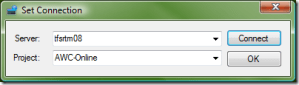
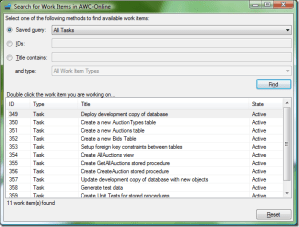
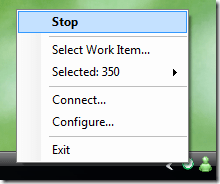
Simply specify your server and project, then search for your Work Item and you are tracking your time.

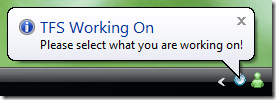
The icon turns green to notify you that you are tracking your time.

This will record your time in the history of the work item whenever you stop working on the item. To stop working on, double click the icon or select stop from the menu, and the work item is updated and the icon turns red.

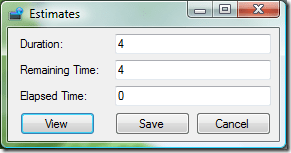
You can also specify your estimates against a work item so that you can record how you are going.

Access to the work item is available.

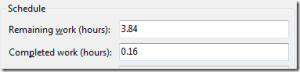
With some very simple configuration the estimates can be mapped to the TFS Work Item fields, per work item type, per project. This can be performed by one member of the team, most likely the one responsible for setting up the project, and then stored on the network share for all team members to reference.

Features can be configured here also. Hovering over the help icon will give you details of the settings.

Auto Time Out will automatically stop working on when the computer is idle for the set time, and resume when activity begins again.

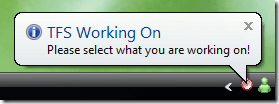
Nag will remind you when you are not working on anything.

TFS Business Intelligence Reporting

In December, I spoke at the Queensland VSTS User Group about reporting on TFS using the Analysis Services cube that is included on the data tier. At the end of this post I have included links to my slides and some sample reports in Excel 2007 to get you started.

Reports are only as good as the data. Using TFS Working On to help accurately report the time spent, or at least remaining hours on your work items has been working very well for my development team. Due to this, the next version should be released shortly, and hopefully continually improved quickly as we are all using it in anger.

Before you can use the Excel reports you must change the TFS cube connection:

  1. Open the Work Book
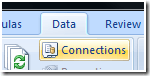
  2. Select the Data Ribbon
  3. Select Connections, Properties… and the Definition tab
     
  4. Update the Data Source in the Connection String to the Analysis Services instance containing the TFS Cube
  5. Click OK, Close

 http://cid-ccb05a30bca0ff01.skydrive.live.com/embedrowdetail.aspx/Public/QVSTSUG-TFSBIReporting-Dec08-MatthewRowan.ppsxhttp://cid-ccb05a30bca0ff01.skydrive.live.com/embedrowdetail.aspx/Public/TFSBIReports.xlsx

Queensland VSTS User Group presentation

On Friday 5th December 2008 I will be presenting at the Queensland VSTS User Group. The abstract of my talk is below:

Using Business Intelligence to simplify reporting with TFS

We’ve all seen how TFS can simplify your source control, build automation and work item tracking. The next obvious thing to do is make use of all that data with powerful Business Intelligence reporting that comes with TFS due to the Analysis Services cube. Since reporting is something developers tend not to want to do, I will demonstrate how you as a developer can go about your regular daily development tasks (potentially making use of contest winner TFS Working On) while keeping your project manager happy. And as a project manager, how you can slice and dice the data to identify scheduling issues, build qualities, even the expense break-down of features.

Technorati Tags: ,,

Bluetooth Auto Lock Gadget – Released

It has almost been one year since my first post, which was about my Auto Lock Vista Sidebar gadget. However, this gadget was only available on Si-Mi. So today I have released it on Windows Live Gallery, here, to hopefully be able to be useful to more people. [Update 7 Oct 2011: Microsoft has retired the gallery, but you can still get the gadget from my SkyDrive]
Usage instructions are as follows:

The Auto Lock Gadget automatically locks the computer when the selected Bluetooth device is out of range. The intention is that the gadget is paired with a Bluetooth device, such as a phone, that is carried with you. When you walk away from your computer with your phone, the gadget will automatically lock the computer, leaving it secure when you leave.

Before Using the Gadget

To get started you must create a pairing for your Bluetooth device to your computer.

1. Open the Control Panel

2. Select Hardware and Sound

3. Select Bluetooth Devices

4. Click Add… and following the Add Bluetooth Device Wizard

5. Once this is completed you are ready to use the Auto Lock Gadget

Using the Auto Lock Gadget

1. Drag the Auto Lock gadget onto your Sidebar or Desktop

2. Click the Discover Devices button

The drop down list will now be populated with your available Bluetooth

3. Select the device you want to connect to

4. Click the Enable AutoLock button

5. Now when your Bluetooth device goes out of range your computer will automatically lock


Technorati Tags: ,